Imagesmith
Image converter and compressor
Converting these needs the server. If you continue, those photos are uploaded, converted, and deleted immediately — they are not queued, not written anywhere lasting, and nothing else about them is kept. Every other image on this page is still converted entirely in your browser.
Which format to choose
JPEG is right for photographs. It discards detail the eye is poor at noticing, which is why it compresses so well and why it is a bad choice for anything with sharp edges — screenshots, logos and text turn mushy.
PNG is lossless and supports transparency, so it suits screenshots, diagrams and anything with flat colour. It is a poor choice for photographs, where it often produces files several times larger than a JPEG nobody could tell apart.
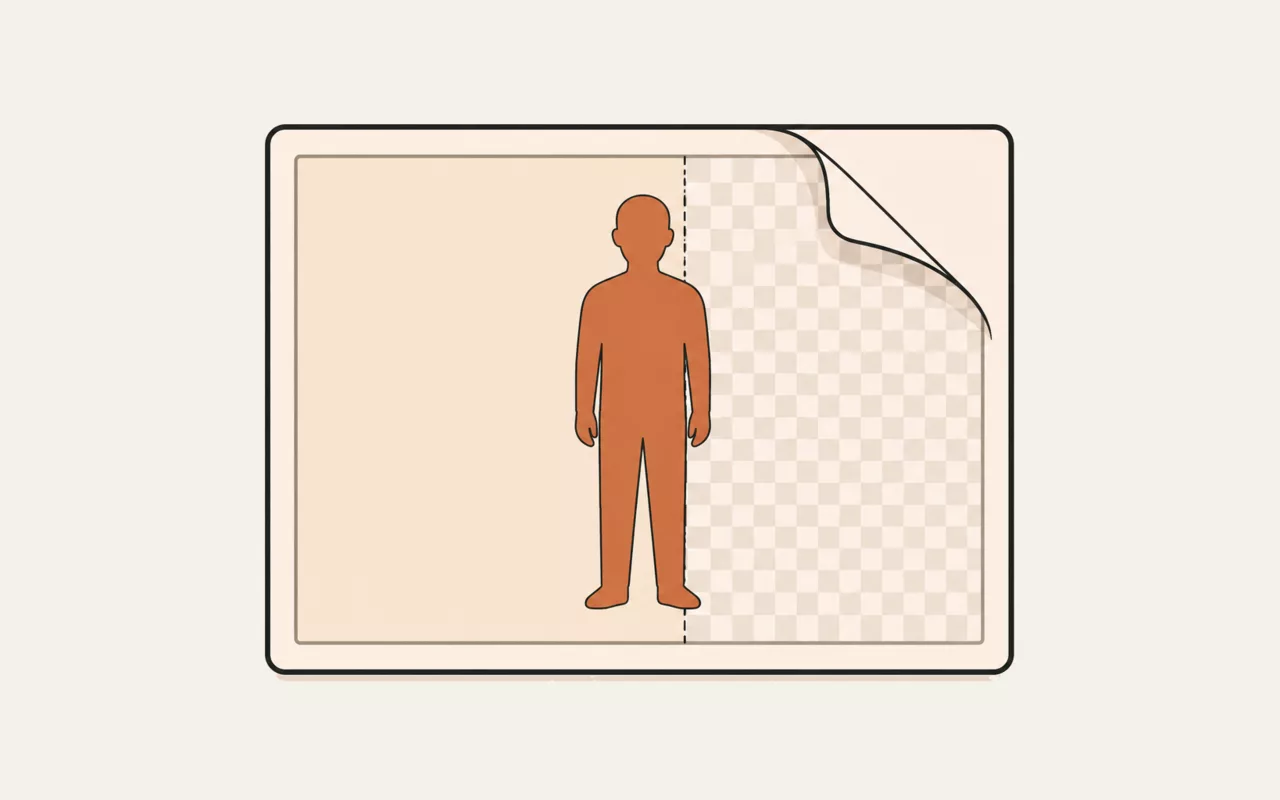
WebP is usually the best of both — roughly 25–35% smaller than an equivalent JPEG, with transparency support. Every current browser reads it. Its one real drawback is that some older desktop software and photo printers still do not, so it is a better choice for the web than for handing a file to somebody else.
Quality, and where the savings actually come from
The quality slider only affects JPEG and WebP; PNG is lossless and ignores it. Around 80% is the point where most photographs stop looking different and the file stops getting meaningfully smaller — below roughly 60% you start to see blocking around edges and in flat areas like skies.
Most of the time the bigger win is not quality but dimensions. A photo straight off a phone is often 4000 pixels wide, and displaying it in a 800-pixel column means the browser downloads about twenty-five times the data it can use. Resizing to what the page actually needs usually saves more than any amount of quality tuning.
What happens to metadata
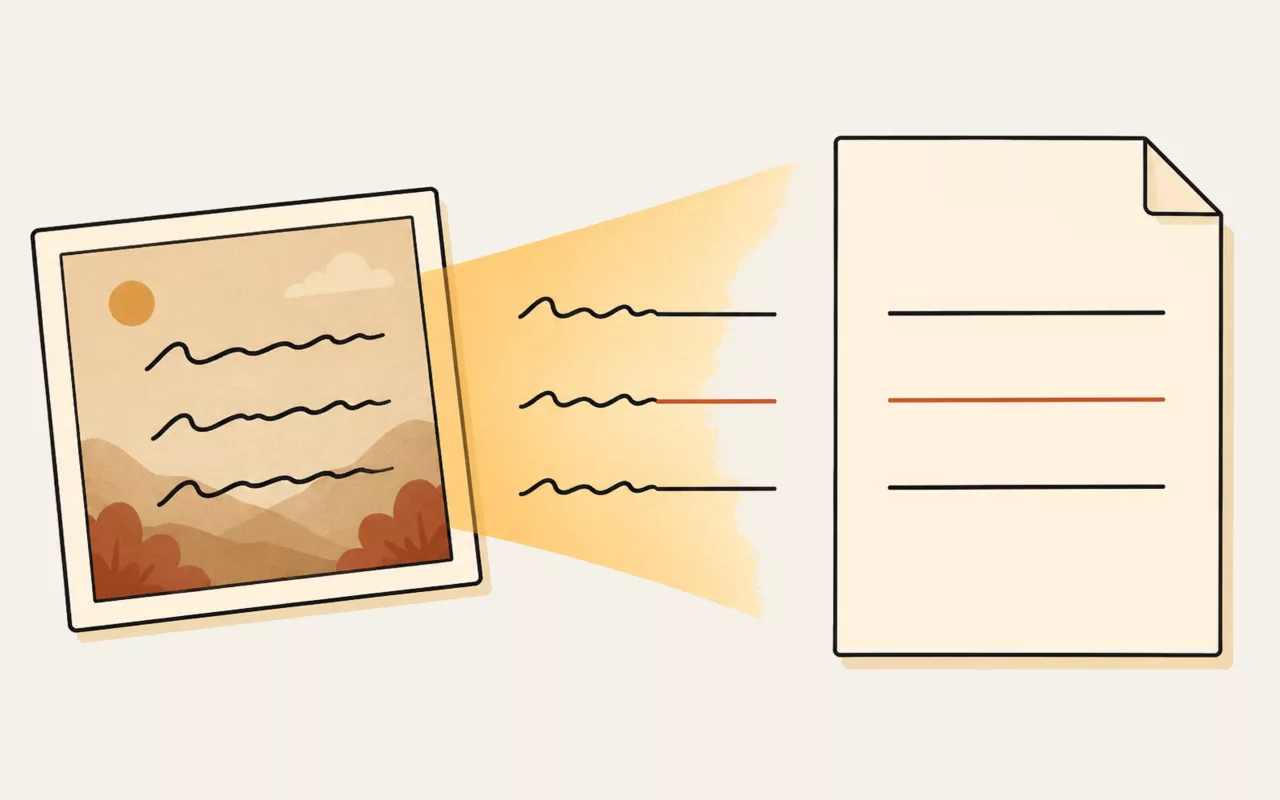
Photographs carry EXIF metadata: camera model, lens, exposure, timestamps, and often the exact GPS coordinates where the picture was taken. Publishing a holiday photo can publish your hotel, and photos of a home can publish its address.
Because conversion here re-draws the image and re-encodes it, none of that metadata survives. The orientation flag is the one exception, and it is honoured before it is discarded — so portrait photos come out upright rather than sideways, which is the usual failure of browser-based resizers.
Batches, and the HEIC exception
Select or drop as many files as you like; they are processed one at a time so a batch of large photos does not exhaust memory on a phone. With two or more converted you can download the lot as a single ZIP.
HEIC — the format iPhones use by default — is the one common file this cannot open, because only Safari can decode it. On other browsers you will need to export as JPEG first, or set your phone to shoot in the more compatible format.
Hitting a file size, rather than guessing at one
"Get this under 200 KB" is the request people usually arrive with, and a quality slider makes you guess, export, check and guess again. Pick a target and the encoder searches the quality itself — eight passes, landing within a few percent — then reports the quality it settled on so you can judge whether the trade was worth it.
It has no effect on PNG, which is lossless and ignores quality entirely. If a PNG is too big, the fix is fewer dimensions or a different format.
AVIF, and why it might not be offered
AVIF is meaningfully smaller than WebP at the same visual quality — often 20-30% — and every current browser can display it. Writing it is a different question: the converter tests whether your browser can actually encode AVIF and disables the option if it cannot, rather than accepting the choice and quietly handing back a PNG with the wrong extension.
iPhone photos (HEIC)
Photos from an iPhone are HEIC by default, and most browsers cannot decode that format — which means this tool cannot open them either, since it converts using your browser's own image pipeline. Safari on Apple hardware is the exception and handles them fine.
The reliable way round it on other devices: use the phone's Share option rather than sending the file itself, which converts to JPEG on the way out. Or set Settings → Camera → Formats to "Most Compatible" to shoot JPEG in the first place.
This tool runs entirely in your browser. Nothing you type, paste or open is sent to util.quest or anywhere else — there is no upload and no request to make one. You can disconnect from the network and it will keep working.
Resize, compress and convert images between JPEG, PNG and WebP without uploading them anywhere. Handles a whole batch at once, honours the rotation flag on phone photos, and strips the EXIF metadata — including GPS coordinates — as a side effect of re-encoding.
It's one of the free tools in the util.quest collection — nothing to install, and no account needed. Found a bug or want a feature? Reach out at [email protected].