Scribe
Image and PDF to text converter (OCR)
Reading the image…
Getting a good result
Recognition accuracy is dominated by the input, not by the software. A flat, sharp, well-lit image of text will read almost perfectly; a photograph taken at an angle in poor light will not, however good the recogniser is.
Three things help more than anything else: get square to the page so lines are horizontal, fill the frame with the text rather than the desk around it, and avoid shadows falling across the middle. If you have a scan and a photo of the same document, use the scan.
The layout setting is the one that matters
The default assumes a full page of text and looks for paragraph structure. That is right for a document and wrong for most other things — a screenshot of a single label, a sign in a photograph, a price on a receipt.
If a result comes back empty or scrambled, change the layout before changing anything else. Scattered text is the setting for signs, labels and interface screenshots, and it routinely turns an unusable result into a good one. It is the single most useful control here.
Keeping the columns
Plain recognition output collapses every run of whitespace, which is fine for prose and destroys exactly the documents people most often bring here. A receipt, an invoice, a bank statement, a timetable — in all of them the meaning of a number is the column it sits in, and a flattened version of it is a list of figures with nothing to attach them to.
Keep layout rebuilds the page from where each word actually was, so columns stay in line and paragraph breaks survive. It uses a monospaced grid, which is an approximation rather than a reproduction: proportional text will not land perfectly, and a heavily skewed scan will drift. For anything tabular it is still far closer to the original than the plain view.
Reading a PDF
Scanned documents arrive as PDFs far more often than as image files, so a PDF can be uploaded directly. Each page is rendered to an image at roughly 300 dpi — the resolution the recogniser is happiest with — and read in turn, then the pages are joined back together.
There is a limit of ten pages per upload, and a time budget on top of it. Both exist because this tool answers in the same request rather than queueing a job, so the whole thing has to finish while you wait. If a document is cut short you are told how many pages were read and how many there were — a truncation you are not told about is much worse than one you are.
A PDF that is already text rather than a scan will still work, but you do not need this for one: copying the text straight out of a PDF reader is faster and perfectly accurate, where recognition can only ever approximate.
Finding the words that are wrong
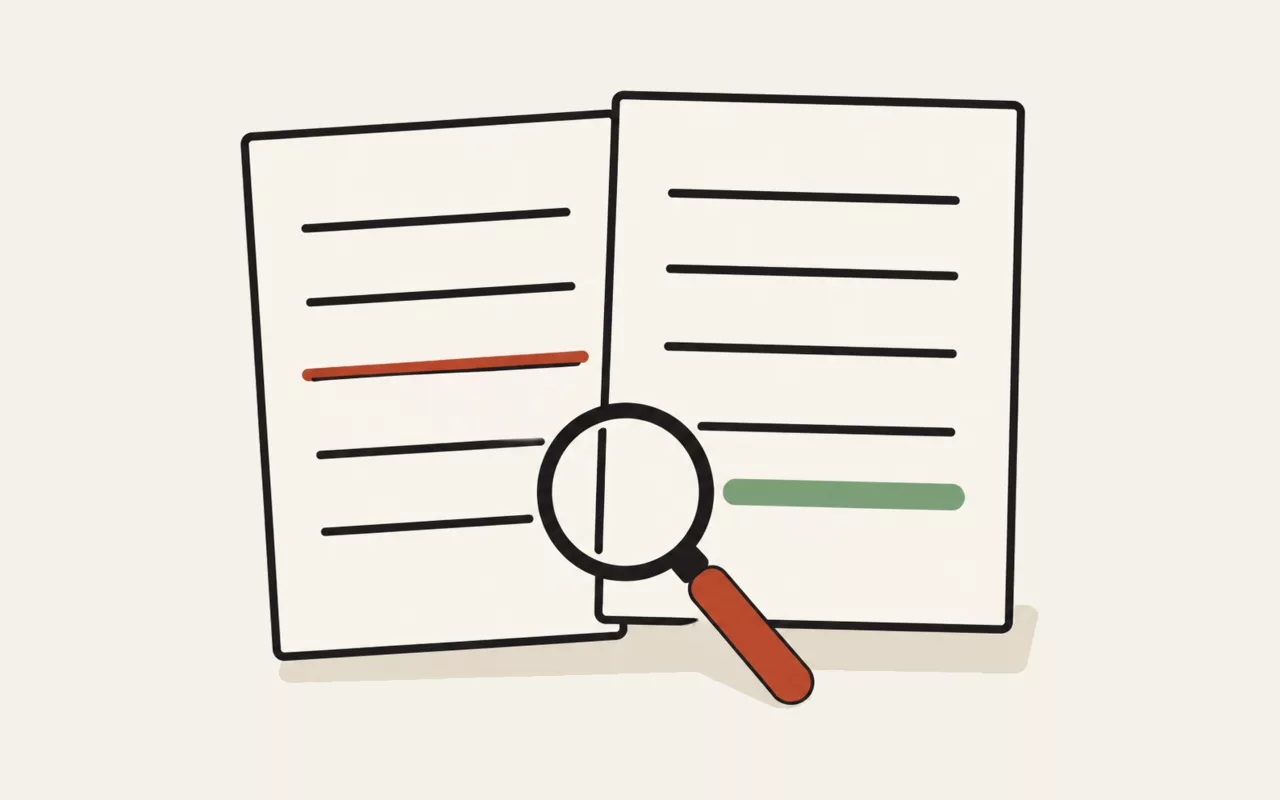
Check quality marks every word the recogniser was unsure of, in two tiers: a light mark for "worth a glance", a darker one for "probably wrong". Hovering a mark shows the figure behind it.
This is more useful than the overall percentage, which tells you a problem exists without telling you where it is. The marks put your attention on the handful of places worth checking, which for most documents takes under a minute.
It will not catch everything, and it is important to know why. The marks show what the recogniser was unsure of — but its characteristic failure is being confident and wrong. On a test receipt here, "1kg" came back as "lkg" at a confidence high enough to pass unmarked, because a lower-case L genuinely does look like a one. Nothing marked is not the same as nothing wrong. Numbers still deserve a look.
Why a confidence figure is shown
Optical recognition fails in a particular way: it produces confident, well-formed, entirely wrong words. A misread digit in an invoice total looks exactly like a correct one, and nothing about the output signals the difference.
So the mean confidence is reported alongside the text. Above roughly 85% the result is usually reliable. Below about 70% it should be treated as a draft and read against the original — particularly anywhere it matters, which is to say anywhere with numbers in it.
What happens to your file
This tool cannot run in your browser, so the file is uploaded. It is written to a temporary location outside the web root, read, and deleted before the response is sent. It is never stored, never served back at a URL, and there is no path by which anyone could request it. That applies to the rendered pages of a PDF as much as to the original.
Images are re-encoded first, and that is not only for privacy: decoding and redrawing an image means the bytes handed to the recogniser are ones this server produced rather than ones a stranger uploaded, which closes off a whole category of malformed-file attacks. It also converts to greyscale and stretches contrast, which measurably improves the reading.
A PDF cannot be laundered that way. Rendering one means a PDF library has to parse your file as it arrived, so the protection here is containment rather than sanitisation: a size limit, a page limit, a deadline that kills the renderer, no network access from it, and a working directory removed whether the render succeeded or not. That is a meaningful difference from the image path and it would be dishonest to describe them as the same.
Paste a screenshot straight in
Copying a screenshot and pressing Ctrl/⌘ + V anywhere on this page reads it immediately — no need to save the file first, and no need to click anything before pasting. That is the fastest route for the most common case: text trapped in a screenshot of an error dialog, a slide, or a chat window.
This tool uses the util.quest server. It cannot run in your browser — the work is either impossible there or too heavy for it. What you submit is sent to this server, used to produce the result, and not stored afterwards. Requests are rate limited, and nothing about them is logged beyond what is needed to enforce that.
Pull the text out of a screenshot, a scan, a photograph of a page or a PDF. Handles sixteen languages, can keep the columns of a receipt or an invoice intact, marks the words it was unsure of so you know where to look, and deletes your file the moment it has finished reading it.
It's one of the free tools in the util.quest collection — nothing to install, and no account needed. Found a bug or want a feature? Reach out at [email protected].